This free online stitch counter and row counter for crochet and knitting saves your place in your browser, with no app or sign-up. Tap + Stitch for each stitch and + Row at the end of each row.
Your browser isn’t saving this count, so keep this page open.
A free account keeps several projects on any device. Sign up or log in
Saved to your account.
Not saved to your account yet. Trying again soon.
Pattern settings
Leave a box empty to skip it.
Keyboard: Space or S adds a stitch, Enter or R adds a row, Z undoes.
How to use this online row and stitch counter
- Tap + Stitch after each stitch you make.
- Tap + Row when you finish a row. The stitch count goes back to 0 for the next row, unless you untick “Start the stitch count at 0 on each new row” in Pattern settings.
- To fix a miscount, tap the − in the corner of the Stitches or Rows box, or tap Undo to take back your last tap. Undo also brings your counts back after Reset.
- Open Pattern settings to count rounds, or to enter the stitches per row, the rows in your pattern and the rows per repeat. The counter then tells you when a row, a repeat or the whole pattern is done.
- Tick Keep screen on so your phone doesn’t lock while you crochet, or tap Full screen for two big buttons that fill the screen.
- To count several projects, tap Sign up or log in under the counter for a free LineaCraft account. Once you’re logged in, tap your project’s name above the counter to start a new project, name it, or go back to another one. Each project keeps its own counts and settings.
- Your projects are saved to your account, so they open on any phone or computer where you log in.
On a computer, press Space or S to add a stitch, Enter or R to add a row, and Z to undo. On an Android phone, in Chrome or Samsung Internet, each tap on + Stitch or + Row gives a short buzz, and a longer one when you reach your stitch count, finish a repeat or finish the pattern. To stop it, untick Vibrate when I tap in Pattern settings.
Set the counter up for your pattern
Pattern settings has three optional boxes. Fill in the numbers your pattern gives you and leave the others empty.
| If your pattern says | Set this | The counter then |
|---|---|---|
| Row 2: sc in each st across (24) | Stitches per row: 24 | Tells you when the row has 24 stitches, and when you go over |
| Rnd 3: (sc, inc) around (18) | Count: Rounds, and Stitches per round: 18 | Counts rounds and tells you when the round has 18 stitches |
| Repeat rows 1 to 4 until the piece is 10 inches long | Rows per repeat: 4 | Shows which row of the repeat you’re on and how many repeats you’ve done |
| Work 40 rows | Rows in the pattern: 40 | Shows “of 40” under the row count and tells you when the last row is done |
Amigurumi patterns change the stitch count from round to round, so type the new number into Stitches per round as you start each round.
Do you need a row counter or a stitch counter?
A row counter keeps track of the rows or rounds you’ve finished. It tells you which row of the pattern comes next, so the piece comes out the length the pattern asks for. A stitch counter keeps track of the stitches inside one row. That matters when a pattern ends each row with a stitch count, such as “(24)”, and when you increase or decrease, as in amigurumi.
Most crocheters need both at different times, so this counter does both. The stitch count runs inside each row, and the row count runs across the whole piece.
Tips for keeping count
- Tap right after you finish each stitch or row, before you look away from your work.
- Tap + Stitch once for each stitch you make. An increase (inc) puts two stitches into one stitch, so it takes two taps. A decrease such as sc2tog works two stitches together into one, so it takes one.
- If your pattern says the turning chain counts as a stitch, as “ch 3 (counts as dc)” does, tap + Stitch for it too, so your count matches the pattern’s.
- Put a stitch marker in the first stitch of each row, so you can find where the row starts when you count its stitches. In spiral rounds, tap + Round each time you get back to the marker, then move the marker up to the first stitch of the new round.
- Before you tap + Row, check your stitch count against the number at the end of that row in the pattern.
- Count in the same browser each time, since that’s where the count is saved, or log in to a free LineaCraft account to pick up on any device.
Other ways to keep count
A free counter like this one is one way to keep count. These are the others crocheters use, and what each one suits.
| Method | How you count | Suits |
|---|---|---|
| Pencil and paper | A tally mark for each row | Short projects you finish in one sitting |
| This page or a row counter app | Tap the screen after each stitch or row | Counting at home with your phone or computer beside you |
| Stitch markers | Clip one in every 10 or 20 stitches, or in the first stitch of each row | Long chains and big stitch counts, since you only recount from the last marker |
| Finger or click counter | Press a small counter after each stitch or row | Row counts when your phone isn’t nearby |
| Counting crochet hook | Press the stitch and row buttons on the hook’s handle | Anyone who keeps losing count, since the count stays on the hook in your hand |
Our pick for anyone who keeps losing count is a counting hook. The count stays on the hook you’re already holding. You tap one button after each stitch and another after each row, with no phone, paper or extra gadget to reach for.
Count on the hook with our Counting Crochet Hook Set
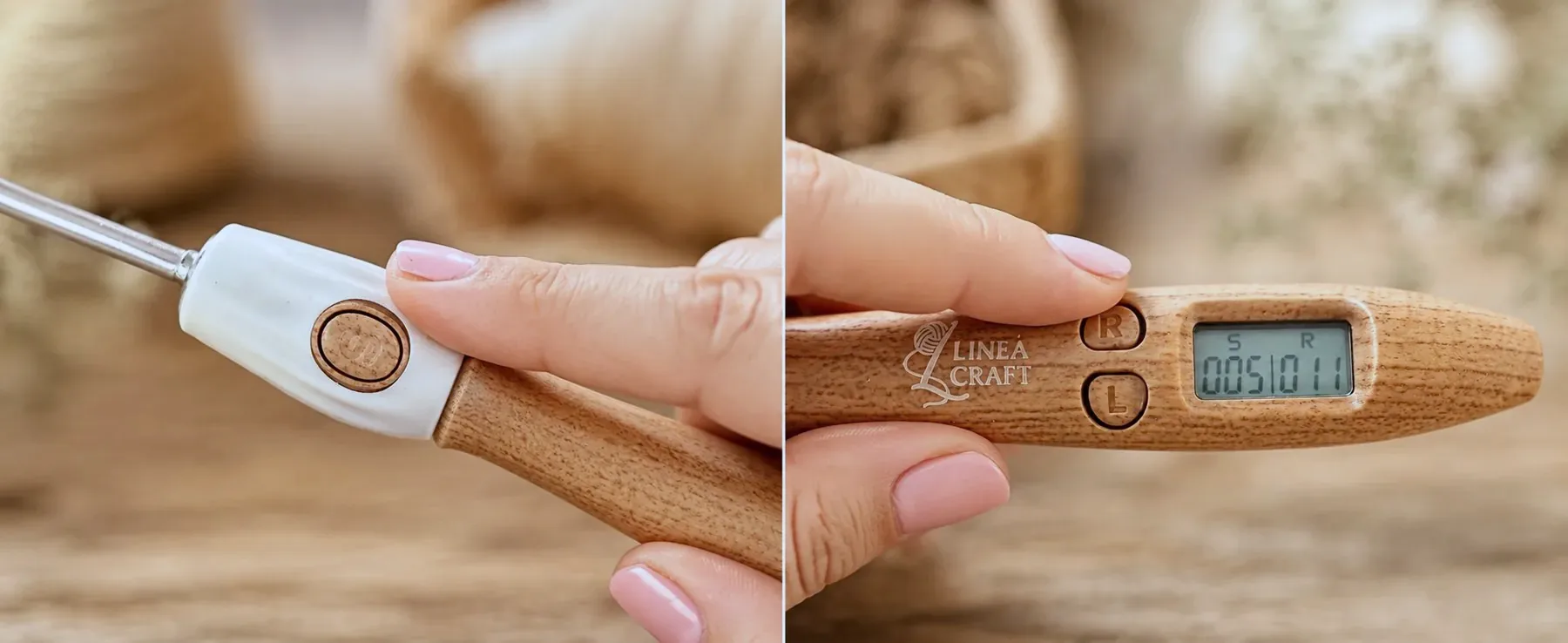
We sell one, the LineaCraft Counting Crochet Hook Set ($59.99), and it’s the one we’d pick if you keep losing count. Tap S after each stitch and R after each row, and the small screen on the handle shows both counts. The stitch button sits on the white collar under your fingertip, away from the row and light buttons, so you can keep crocheting while you count. Of the 14 counting hook sets we checked on Amazon in October 2026, ours is the only one whose review summary lists button placement as a positive.
Both counts stay saved when the hook switches off, so a project you put away comes back on the same row. The counter works with all 18 tips: 12 metal tips from 2.0 to 8.0 mm, and 6 clear tips from 9.0 to 14.0 mm that light up for chunky yarn. Our crochet hook size chart shows which yarn each size suits.
Our guide to using a counting crochet hook shows how to undo a miscount and start a new project, and do counting crochet hooks work covers what owners say about them.
Questions about row and stitch counters
Is this row and stitch counter free?
Yes. LineaCraft’s row and stitch counter is free, with no sign-up needed and no app to download. It runs in the browser on a phone, tablet or computer, for crochet or knitting. A free account is optional. It lets you count several projects and keeps them on any device.
Does the counter save my count?
Yes. LineaCraft’s counter saves your count in your browser after every tap, so it’s still there after you close the page or restart your phone. Without an account, the count stays on that device, in that browser, and isn’t sent to LineaCraft. Clearing your browsing data deletes it, and in a private window it lasts only until you close the window. Safari on iPhone, iPad and Mac also deletes a site’s saved data once you’ve used Safari for 7 days without using that site, so without an account, open the counter and tap it at least once a week, or note your count before you put a project away. If you log in to a free LineaCraft account, your projects are also saved to your account, so they come back when you log in, even after your browser clears its saved data.
Can I count more than one project?
Yes, with a free LineaCraft account. Log in, then tap your project’s name above the counter to start a new project or go back to another one. Each project keeps its own stitch and row counts and pattern settings. Without an account, the counter keeps one project.
Can I use the counter on my phone and my computer?
Yes, with a free LineaCraft account. Tap Sign up or log in under the counter, then log in on your other device, and your projects are there with their counts. Without an account, each browser keeps its own count.
Does the counter work offline?
Once the page is open, yes. LineaCraft’s counter counts and saves on your device, so you can keep counting with no signal.
Can I count stitches and rows at the same time?
Yes. The counter shows the stitches in the current row beside the rows in the whole piece. Each tap on + Row sets the stitch count back to 0. For a running stitch total, untick “Start the stitch count at 0 on each new row” in Pattern settings.
Can I count rounds instead of rows?
Yes. Open Pattern settings in the counter and choose Rounds under Count. The display, buttons and messages then say rounds, for amigurumi, hats and anything else worked in the round.
Can I keep my phone screen from turning off?
Yes. Tick Keep screen on in the counter, and the screen stays on while the counter is open in front of you. The box shows in browsers that support it, which include current versions of Chrome, Safari, Edge and Firefox.
Can I use it as a knitting row counter?
Yes. LineaCraft’s counter works as a knitting row counter and stitch counter, since rows, rounds, repeats and stitch counts work the same way in knitting.
What if I tap by mistake?
Tap Undo in the counter to take back your last tap, or tap the − in the corner of the Stitches or Rows box. Undo also brings your counts back after Reset.
Can I count with my keyboard?
Yes. On a computer, press Space or S to add a stitch, Enter or R to add a row, and Z to undo.